
From strategic router placement and the Wi-Fi 7 revolution to securing your “IoT” ecosystem: a 2,500-word blueprint for the ultimate digital foundation.
INTRODUCTION
By the beginning of 2026: the “Home Network” has transitioned from a convenience to a critical utility: ranking alongside electricity and water in importance. We are no longer just connecting a single laptop and a smartphone. In the modern “Connected Home”: our network must simultaneously support 8K video streaming: low-latency Cloud Gaming: high-definition Security Cameras: and dozens of “Smart” appliances—all while maintaining a secure “Digital Perimeter” against sophisticated cyber threats.
The complexity of the 2026 network environment is driven by the sheer density of devices. The average household now manages over 30 connected devices: each competing for “Bandwidth” and “Airtime.” If your network isn’t optimized: you experience the digital equivalent of a “Traffic Jam.” This 2,500-word comprehensive guide is designed to help you build a “Future-Proof” network from the ground up. We will explore the physics of “Signal Propagation”: the benefits of “Mesh Technology”: and the “Hardening” techniques required to protect your privacy in an age of constant connectivity. Whether you are living in a small apartment or a multi-story home: these principles will ensure your “Digital Foundation” is rock solid.
THE CORE HARDWARE: CHOOSING YOUR “CENTRAL HUB”
In 2026: the “Modem-Router Combo” provided by your Internet Service Provider (ISP) is often the weakest link in your system. To achieve professional-grade results: you must understand the hardware tiers.
1. Wi-Fi 6E vs. Wi-Fi 7: The Speed Gap
The year 2026 marks the mass adoption of Wi-Fi 7 (802.11be). * The 6GHz Advantage: Wi-Fi 7 uses the “Clean” 6GHz band: which is free from the interference of “Microwaves” and “Older Bluetooth” devices.
- MLO (Multi-Link Operation): Unlike older routers: Wi-Fi 7 can send data over multiple “Bands” (2.4GHz: 5GHz: and 6GHz) at the exact same time. This reduces latency to near-zero: making it essential for Virtual Reality (VR) and AI-Processing tasks.
2. Standard Router vs. Mesh Systems
- The Standard Router: Best for small apartments. It acts as a “Single Source” of signal.
- The Mesh System: Best for homes over 1,500 square feet. It uses multiple “Nodes” to create a single: unified “Blanket” of coverage. In 2026: look for “Tri-Band” mesh systems that use a dedicated “Backhaul” channel to talk to each other: ensuring no speed is lost between nodes.
ROUTER PLACEMENT: THE PHYSICS OF “DEAD ZONES”
Wi-Fi signals are “Radio Waves”: and like all waves: they are weakened by obstacles. To maximize your coverage: you must respect the “Law of Signal Propagation.”
The Golden Rules of Placement:
- Centralize the Hub: Place your router in the “Geographic Center” of your home. Putting it in a “Corner Room” means 50 percent of your signal is being sent to your neighbor’s yard.
- Elevation is Key: Radio waves travel “Outward and Downward.” Placing your router on a high shelf or the second floor will provide better coverage than placing it on the floor behind a couch.
- Avoid the “Signal Killers”: * Water: Fish tanks and “Water Heaters” act as “Black Holes” for Wi-Fi.
- Metal: Mirrors and “Kitchen Appliances” reflect and distort signals.
- Brick and Concrete: These materials absorb 2.4GHz and 5GHz frequencies: significantly cutting your range.
OPTIMIZING PERFORMANCE: THE “CHANNEL” STRATEGY
If you live in a crowded area: your “Neighbors” are your biggest performance enemy. Everyone is fighting for the same “Airwaves.”
1. Frequency Selection
- 2.4GHz: The “Workhorse.” It travels far and through walls but is “Slow.” Use this for “Smart Bulbs” and “Simple Sensors.”
- 5GHz: The “Speedster.” It is much faster but has a “Shorter Range.” Use this for “Laptops” and “Tablets.”
- 6GHz (Wi-Fi 6E/7): The “VIP Lane.” Use this exclusively for your “Primary Work” and “Gaming” devices.
2. Avoiding Interference
In 2026: most routers have “Auto-Channel” selection. However: these can be “Laggy.” Use a “Wi-Fi Analyzer” app to see which channels are least crowded. For 2.4GHz: always stick to channels 1: 6: or 11: as these are the only ones that don’t “Overlap” with each other.
SECURITY BEST PRACTICES: HARDENING YOUR PERIMETER
A fast network is a “Dangerous” network if it isn’t secured. In 2026: “Cyber-Attacks” on home networks have become automated and frequent.
1. The WPA3 Standard
In 2026: WPA2 is no longer sufficient. Ensure your router is set to WPA3-SAE. This provides “Stronger Encryption” and protects against “Dictionary Attacks” (where hackers try to guess your password millions of times per second).
2. The “Guest Network” Strategy
This is the most underused security feature. You should have two separate “SSIDs” (Network Names):
- The Private Network: For your “Laptops”: “Phones”: and “Storage Drives.”
- The Guest/IoT Network: For “Smart Toasters”: “Light Bulbs”: and “Visitors.”Why? IoT devices are notorious for “Weak Security.” If a hacker breaks into a “Smart Bulb” on your “Guest Network”: they are “Isolated” and cannot reach your “Personal Laptop” or “Banking Data.”
3. Disabling WPS and UPnP
- WPS (Wi-Fi Protected Setup): That “Push Button” to connect is a major security flaw. Disable it in your settings.
- UPnP (Universal Plug and Play): While convenient: it allows apps to open “Holes” in your “Firewall” without your permission. Turn it off to maintain total control over your “Incoming Traffic.”
COMPARISON: WI-FI STANDARDS IN 2026
| Feature | Wi-Fi 5 (Legacy) | Wi-Fi 6 (Standard) | Wi-Fi 7 (Pro/2026) |
| Max Theoretical Speed | 3.5 Gbps | 9.6 Gbps | 46 Gbps |
| Bands Used | 2.4 / 5 GHz | 2.4 / 5 GHz | 2.4 / 5 / 6 GHz |
| Latency | High | Medium | Ultra-Low (Near-Zero) |
| Best Use Case | Basic Browsing | 4K Streaming | VR / Cloud Gaming / AI |
| Security | WPA2 | WPA2 / WPA3 | WPA3 (Mandatory) |
| Congestion Handling | Poor | Good (OFDMA) | Perfect (MLO / Puncturing) |
THE “WIRED” ADVANTAGE: WHY ETHERNET STILL MATTERS
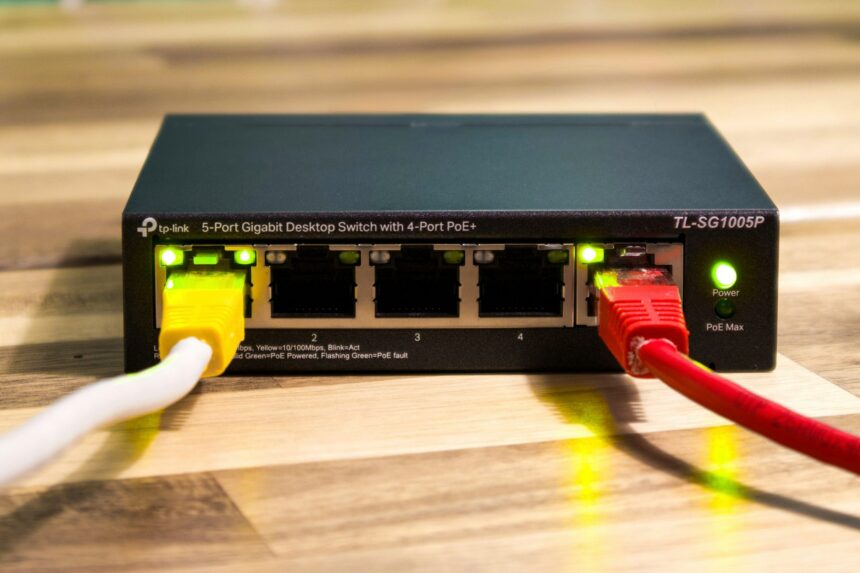
Despite the wonders of Wi-Fi 7: “Copper is still King” for stability. In 2026: we recommend a “Hybrid Approach.”
- The Ethernet Backbone: If your house is wired with Cat6a or Cat7 cables: use them for any device that doesn’t “Move.” This includes:
- Desktop PCs (for gaming and work)
- Smart TVs (for buffer-free 8K)
- Gaming Consoles (for the lowest “Ping”)
- Powerline Adapters: If you cannot run cables through walls: use “Powerline Adapters” that send internet signals through your “Electrical Wiring.” In 2026: “G.hn” technology has made these much more reliable than earlier versions.
MANAGING YOUR “BANDWIDTH HOGS” (QoS)
Not all data is equal. A “Zoom Call” for work is more important than a “System Update” on a PlayStation.
Quality of Service (QoS): In your router settings: enable QoS. This allows you to “Prioritize” specific devices or types of traffic.
- Prioritize Latency-Sensitive Apps: Set “Video Calls” and “Gaming” to high priority.
- Deprioritize Background Tasks: Set “Large Downloads” and “Cloud Backups” to low priority. This ensures that when your computer starts a 50GB update: your “Work Presentation” doesn’t “Freeze.”
TROUBLESHOOTING COMMON ISSUES
- “Intermittent Drops”: Usually caused by “Channel Interference” or a “Failing Power Supply” on the router. Try changing the “Channel” or replacing the “Power Brick.”
- “Speed is fine: but Latency is high”: This is often “Bufferbloat.” It happens when your router’s “Memory” is overwhelmed. Enabling “Smart Queue Management” (SQM) in high-end routers can fix this.
- “Signal is strong: but Internet is slow”: The problem is likely with your “DNS Provider.” By default: you use your ISP’s DNS. Switch to Cloudflare (1.1.1.1) or Google (8.8.8.8) in your router settings for “Faster Website Loading.”
MONITORING AND MAINTENANCE
In 2026: your network is a “Living Organism.” It requires regular check-ups.
- Firmware Updates: Set your router to “Auto-Update.” These updates contain “Security Patches” for the latest “Exploits.”
- The Weekly Reboot: While modern routers are better: a “Scheduled Reboot” once a week clears the “System Cache” and “Resets” the “Connection Handshakes” with all your devices.
- The “Unknown Device” Audit: Every month: check your router’s “Device List.” If you see a device you don’t recognize: “Block” it immediately. It could be a neighbor “Stealing Wi-Fi” or a “compromised” smart gadget.
TECHNICAL DEEP DIVE: THE “DNS” REVOLUTION (DoH)
In 2026: privacy is under threat from “ISP Tracking.” Your ISP can see every website you visit because “DNS Queries” are usually sent in “Plain Text.”
- The Solution: Enable DNS over HTTPS (DoH) in your router or browser. This “Encrypts” your request to find a website: ensuring that your “Browsing History” remains between you and the site you are visiting—hidden from your “Internet Provider.”
KEY TAKEAWAYS
- Wi-Fi 7 is the 2026 Gold Standard: Use the 6GHz band for your “High-Performance” devices.
- Placement is Physics: Keep the router “High” and “Central” for the best results.
- Isolation is Security: Use a “Guest Network” for all your “Smart Home” (IoT) gadgets.
- WPA3 is Mandatory: Upgrade your security protocol to protect against “Brute Force” attacks.
- Wires are for Stability: Use Ethernet (Cat6a) for stationary devices to “Free Up” the airwaves.
- QoS Prevents Frustration: Prioritize “Real-Time” traffic like video calls over “Background” downloads.
CONCLUSION
Setting up a home network in 2026 is no longer a “Set it and Forget it” task. It is the ongoing management of your “Personal Digital Infrastructure.” By taking the time to “Strategically Place” your nodes: “Segment” your traffic: and “Harden” your security: you are doing more than just “Fixing a Slow Connection”—you are protecting your “Privacy” and ensuring your “Home Office” or “Gaming Rig” performs at its theoretical limit.
The technology of the “Connected Home” will only continue to accelerate. As we move toward “Metaverse” interfaces and “AI-Driven” automation: the “Bandwidth Demands” will grow. But with a “Solid Foundation” built on Wi-Fi 7: Mesh Architecture: and WPA3 Security: your home will be ready for whatever the next “Digital Wave” brings. Remember: a network is only as strong as its “Weakest Node.” Keep your firmware updated: your “Secrets” encrypted: and your “Router” in the center of the room.
REFERENCES AND SOURCES
- IEEE Xplore: The 802.11be Standard — Understanding the Technical Foundations of Wi-Fi 7
- Cisco: Home Network Security in 2026 — Protecting the IoT Perimeter
- Wi-Fi Alliance: WPA3 Specification and the Move Away from Legacy WPA2
- PCMag: Best Wireless Mesh Systems for 2026 — Tested for Coverage and Speed
- Cloudflare: What is DNS over HTTPS (DoH) and Why it Matters for Privacy
- CNET: The Ultimate Router Placement Guide — How to Kill Every Dead Zone in your House